
Split View Plus
Swap sides, reload both, auto-zoom and more for Chrome's native Split View.
Key Features
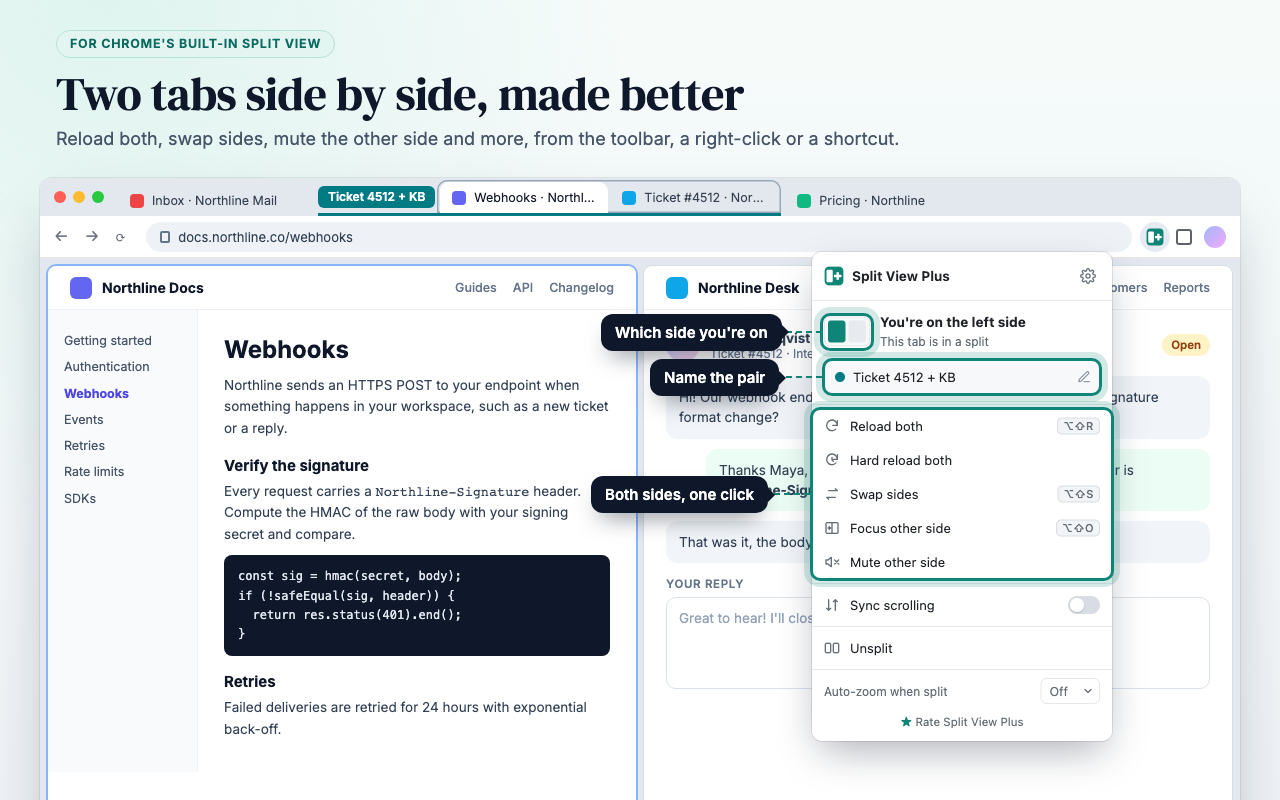
- Reload both — Reload both sides of a split at once, or hard-reload them to skip the cache
- Swap sides — Switch the left and right pages in one step
- Focus other side — Jump to the other side from the keyboard
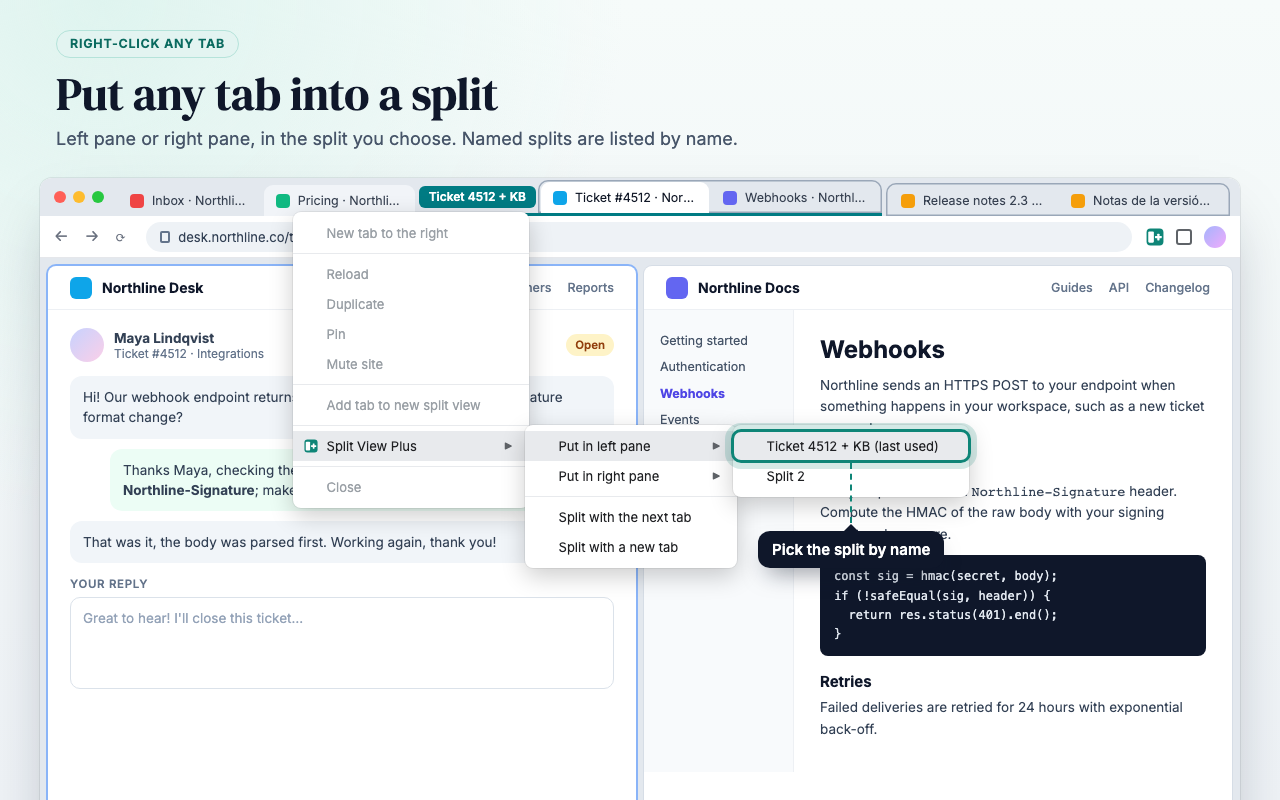
- Put any tab in a split — Right-click a tab to put it in the left or right pane; with several splits open, choose which one
- Start a split fast — Split with the next tab, a new tab, or a copy of the page you're on
- Open in the other pane — Open a link, or look up selected text, on the other side
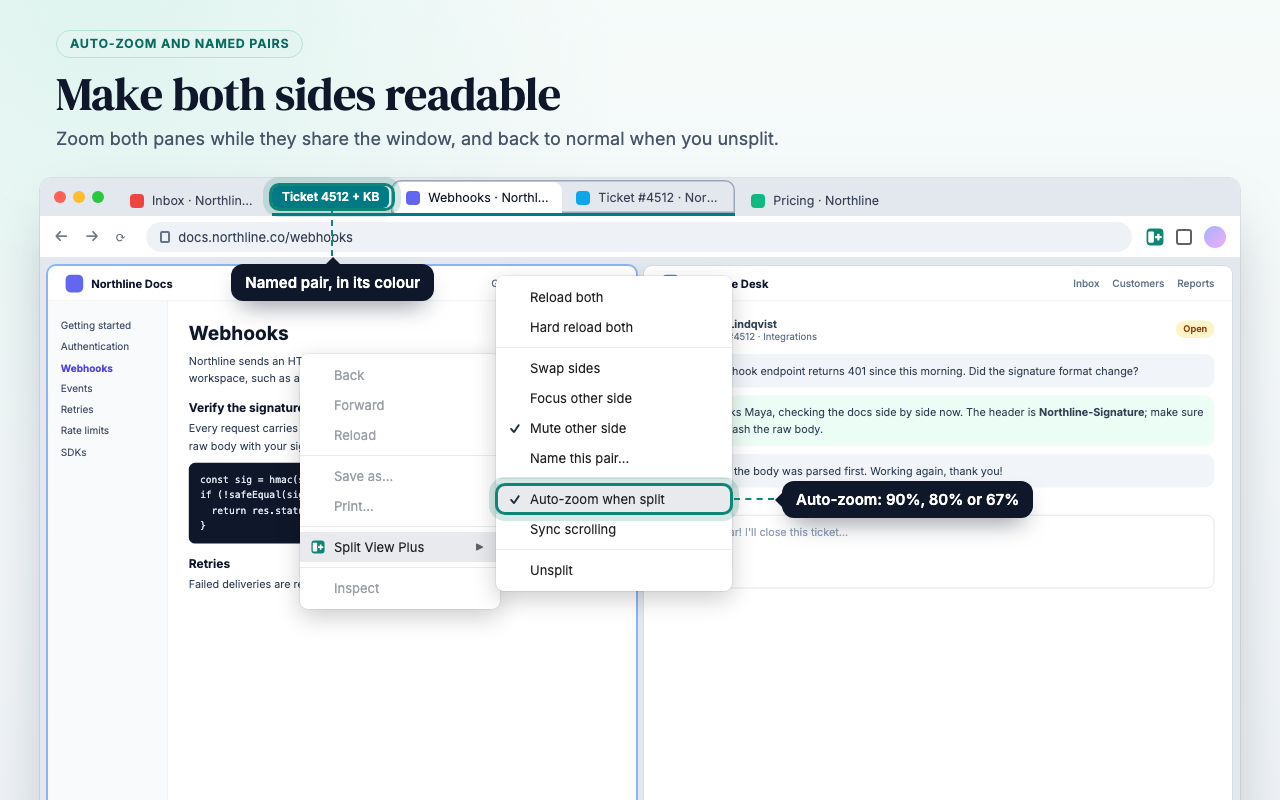
- Auto-zoom when split — Zoom both sides to 90%, 80% or 67% while they share the window, and back to normal when you unsplit
- Name the pair — Give a split a name and a colour, so you can find it again
- Mute other side — Silence the side you're not using, or let audio follow the side you're using
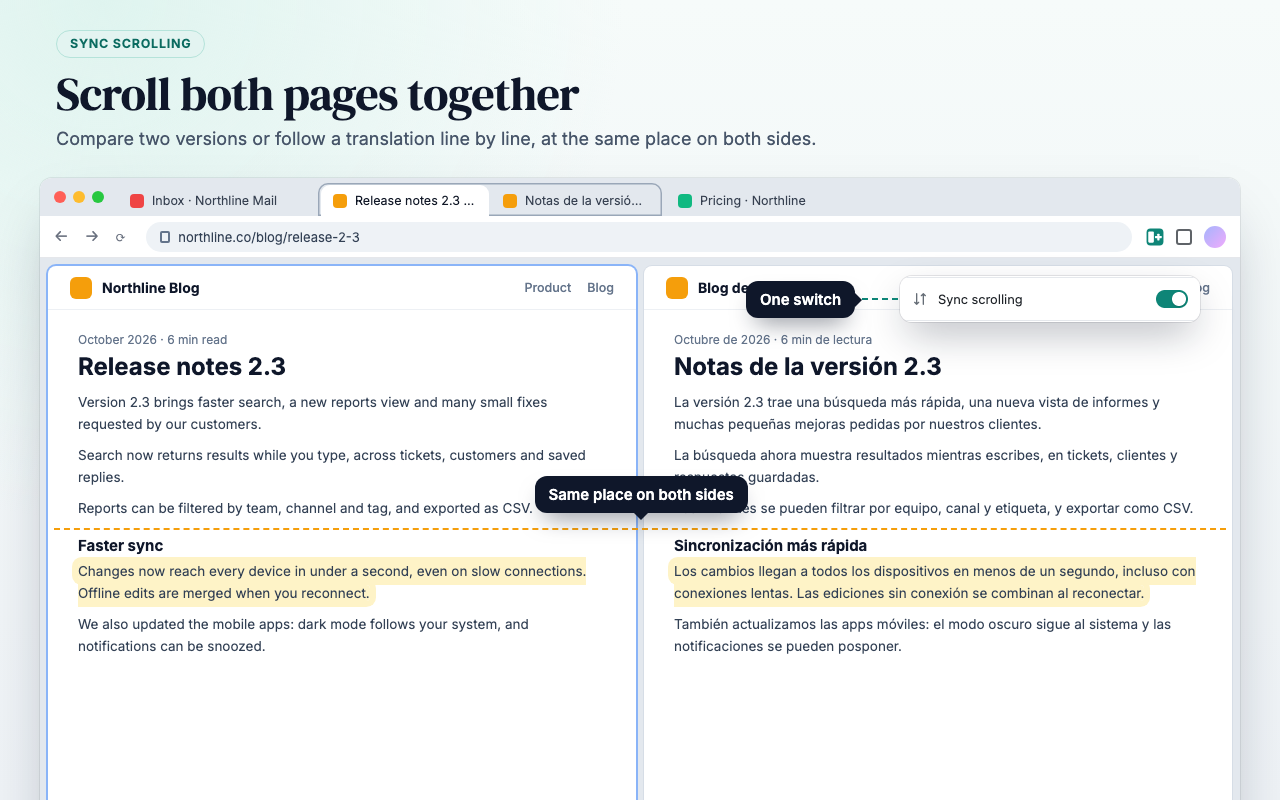
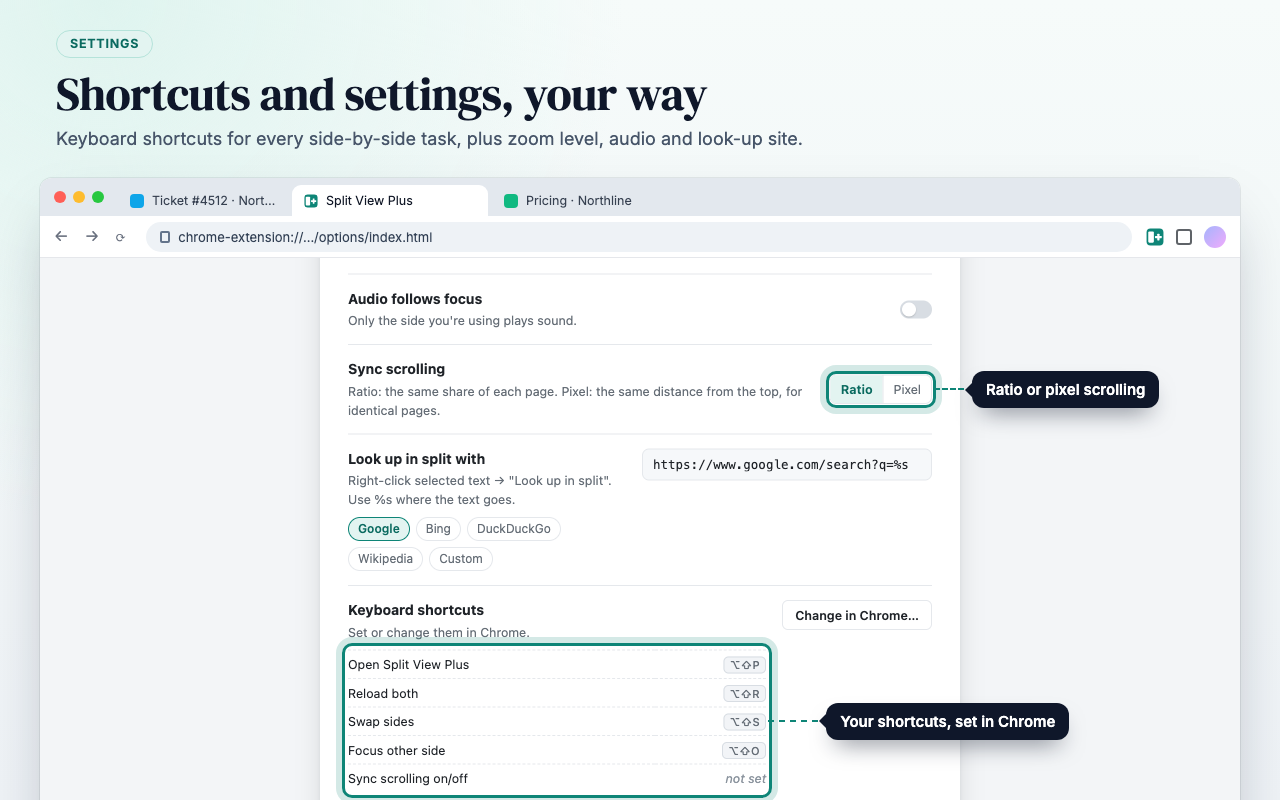
- Sync scrolling — Scroll both sides together, by the same share of the page or the same distance
How to Use
- Install Split View Plus from the Chrome Web Store. It needs Chrome 155 or later, which has Split View built in.
- Make a split: right-click a tab and choose Add tab to new split view (Chrome's own menu), or right-click a tab → Split View Plus → Split with the next tab.
- Use the toolbar button: click Split View Plus on the toolbar. The popup shows which side you're on and everything you can do with the pair.
- Or right-click inside a page in the split: the Split View Plus menu has the same actions.
- Settings: open them from the gear in the popup to choose the auto-zoom level, whether audio follows focus, how sync scrolling lines up the pages, and which site "Look up in split" uses.
Keyboard Shortcuts
- Alt+Shift+R (⌥⇧R on a Mac): reload both
- Alt+Shift+S (⌥⇧S): swap sides
- Alt+Shift+O (⌥⇧O): focus the other side
- Alt+Shift+P (⌥⇧P): open Split View Plus
Change them, or add one for sync scrolling, at chrome://extensions/shortcuts.
Questions and Troubleshooting
I don't see Split View, or the extension won't install. Split View Plus works with Chrome's own Split View, which needs Chrome 155 or later. Update Chrome from Settings → About Chrome.
Why does sync scrolling ask for access to a site? To scroll a page, the extension has to run a small script on it. Chrome asks you once per site, when you first turn sync scrolling on there. For the other side, Chrome shows the request in its extensions menu (the puzzle icon). Sync scrolling can't run on Chrome's own pages, the Chrome Web Store, or PDFs.
Why does naming a pair ask for permission to manage tab groups? A pair's name and colour are a Chrome tab group around the two tabs. Chrome asks once, the first time you name a pair. Clear the name to remove the group.
The shortcuts don't work.
Another extension or app may use the same keys. Set different ones at chrome://extensions/shortcuts.
Is Split View Plus made by Google? No. It's an independent extension that adds to Chrome's Split View. It isn't made by or affiliated with Google.
Feedback
Found a bug, or missing something? Write to contact[at]extension[dot]rocks and mention Split View Plus. If it helps your work, a rating on the Chrome Web Store helps others find it.