
Pesticide for Chrome
Elevate your web development experience with Pesticide for Chrome – the ultimate tool for debugging layouts and mastering CSS!
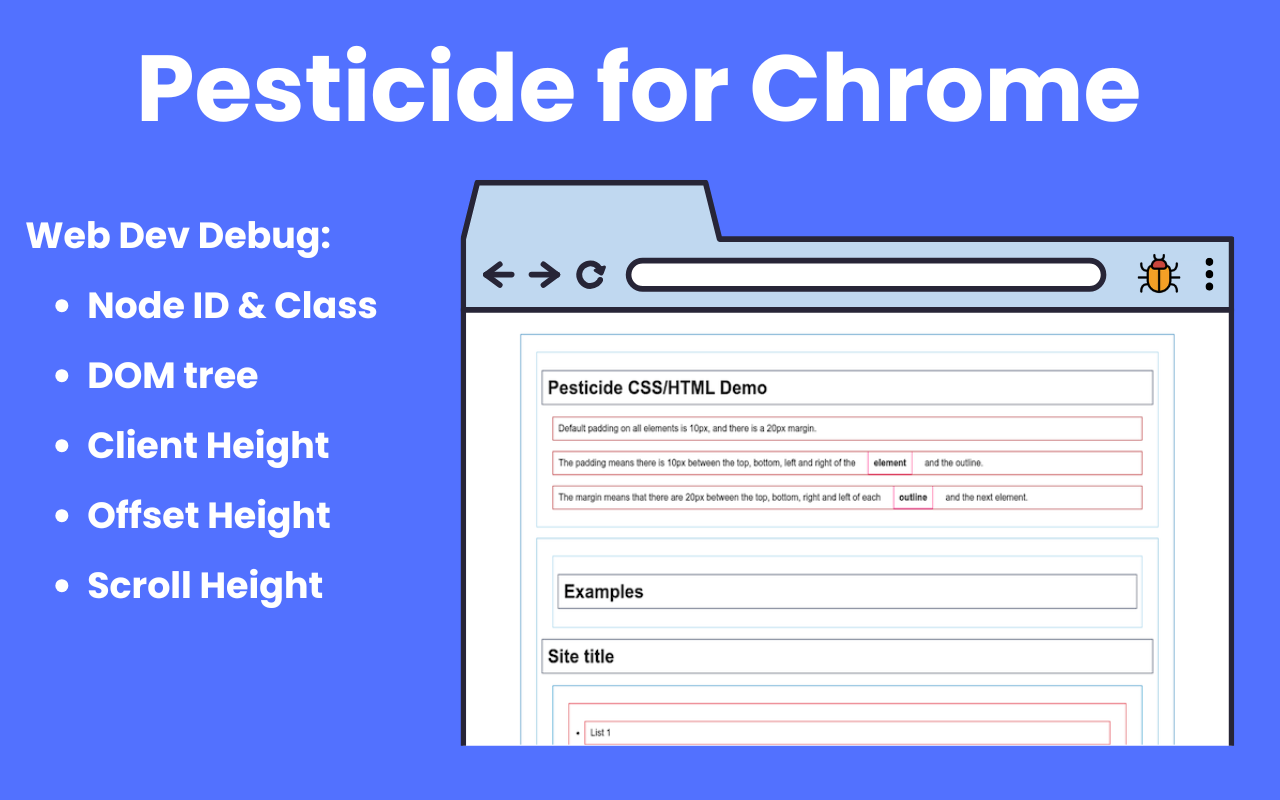

Key Features
- Element outlines and floating inspector — Highlight page structure and inspect the hovered element in a dedicated on-page card
- Rich element details — See tag name,
id, classes, DOM path, client/offset/scroll dimensions, and a visual box model - Font inspection — View rendered font, font stack, size, weight, line height, text color, and related typography properties
- Computed Style panel — Inspect filtered computed CSS properties with an optional Show all mode when you need the full list
- Pin, drag, resize, and hide — Pin the current element, move the card, resize it, collapse sections, or hide sections directly from the inspector
- Flexible activation — Toggle Pesticide from the toolbar button, keyboard shortcut, or context menu without reloading the page
- Persistent preferences — Save section visibility, panel state, and per-site card position and size with Chrome storage
How to Use
- Install Pesticide for Chrome from the Chrome Web Store.
- Navigate to any webpage you want to debug.
- Turn Pesticide on from the extension button, keyboard shortcut, or right-click context menu.
- Hover any element on the page to inspect it. Pesticide will outline the element and show its details in the floating inspector card.
- Pin the current element if you want the inspector to stop following your mouse, then review DOM, font, layout, size, and computed-style information.
- Drag or resize the card if it is covering the page, and collapse or hide sections you do not need.
- Open the options page to control default section visibility and other inspector behavior.
- Turn Pesticide off the same way you enabled it when you are done debugging.
Who Is It For?
Pesticide is for frontend developers, UI engineers, designers who work closely with code, QA engineers investigating visual bugs, and anyone learning how real pages are built with HTML and CSS. It is especially useful when you need faster answers than DevTools alone gives you while hovering around a live page: what element am I on, which font is actually rendering, how large is this box, what does its DOM path look like, and which computed styles matter right now. If you spend time debugging spacing, layout, typography, or CSS behavior in the browser, Pesticide is built for that workflow.